
Option lists
Option lists are the picklists people choose from across Constecca. Examples include document types, status codes, disciplines, currencies and accuracy classes. There are 19 lists.
Workspace and project lists
Each list has two levels:
- Workspace options apply to every project in the workspace. Admins manage them on Settings › Workspace › Options.
- Project options add to the workspace list for one project. Owners and managers manage them on Settings › Options.
A project sees the workspace options plus its own. On Settings › Options, a row marked Workspace is inherited, and a row marked This project was added on this project.
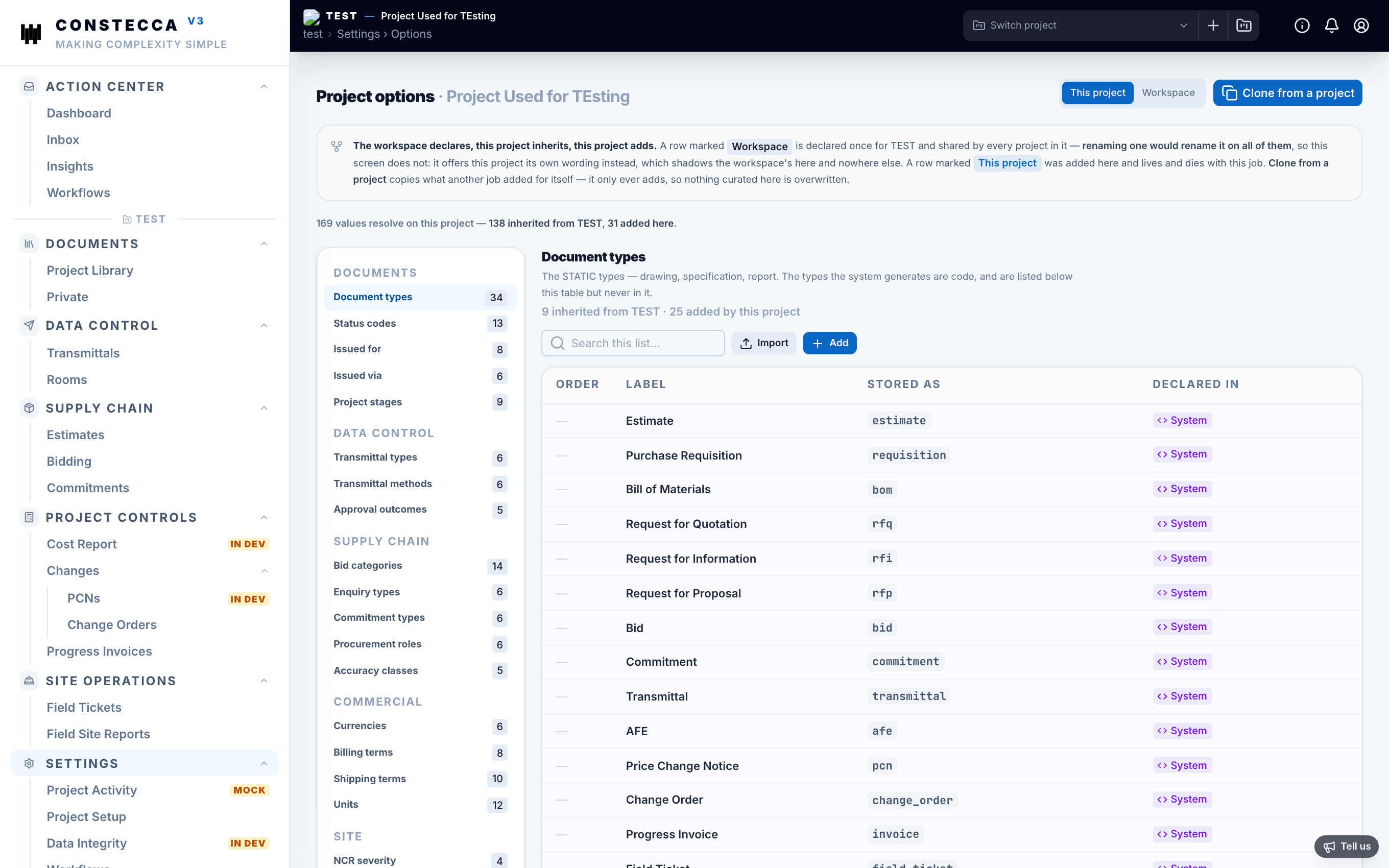
Add an option
- Open Settings › Options and pick a list on the left.
- Click Add.
- Enter the value and save.
To add many at once, click Import and upload a .xlsx or .csv. You match the sheet's columns to the list's columns, and the app shows what each row will do before you click Apply.
Give a workspace option your own wording
You cannot rename a workspace option from a project, because that would rename it on every project. Instead, you give it this project's own wording:
- Click the pencil on a row marked Workspace.
- Enter the Label on this project.
- Click Add to this project.
This project shows your label. Every other project keeps the workspace's wording, and nothing already recorded changes.
To go back to the workspace's wording on document types, click the trash icon on your row. The dialog asks Use the workspace's "…" on this project? Confirm, and the project reads the workspace's label again. No documents move. On other lists, clear your wording from the Workspace view.
Clone from a project
On Settings › Options, click Clone from a project to reuse the values another project added for itself. Choose Every list or just the current one. Values this project already has are skipped, so cloning only adds. It never removes or overwrites anything.
Withdraw an option
Only document types can be withdrawn. Click the trash icon on a row this project added. Everything on the project that used it, such as documents, records and approval workflows, moves to the generic document type, so nothing is left blank. The dialog shows the count before anything changes.
On every other list, you can change an option's label but not withdraw it. Workspace options are withdrawn on Settings › Workspace › Options, not from a project.
See every project's own options
The Workspace view shows the values each project holds for itself, side by side. Use it to find projects that invented their own values, share a value with other projects, or make it standard for the workspace.
Switch between This project and Workspace at the top right of Settings › Options. You see the switch if you are a workspace admin, or an owner or manager on two or more projects. Managers see only the projects they manage.
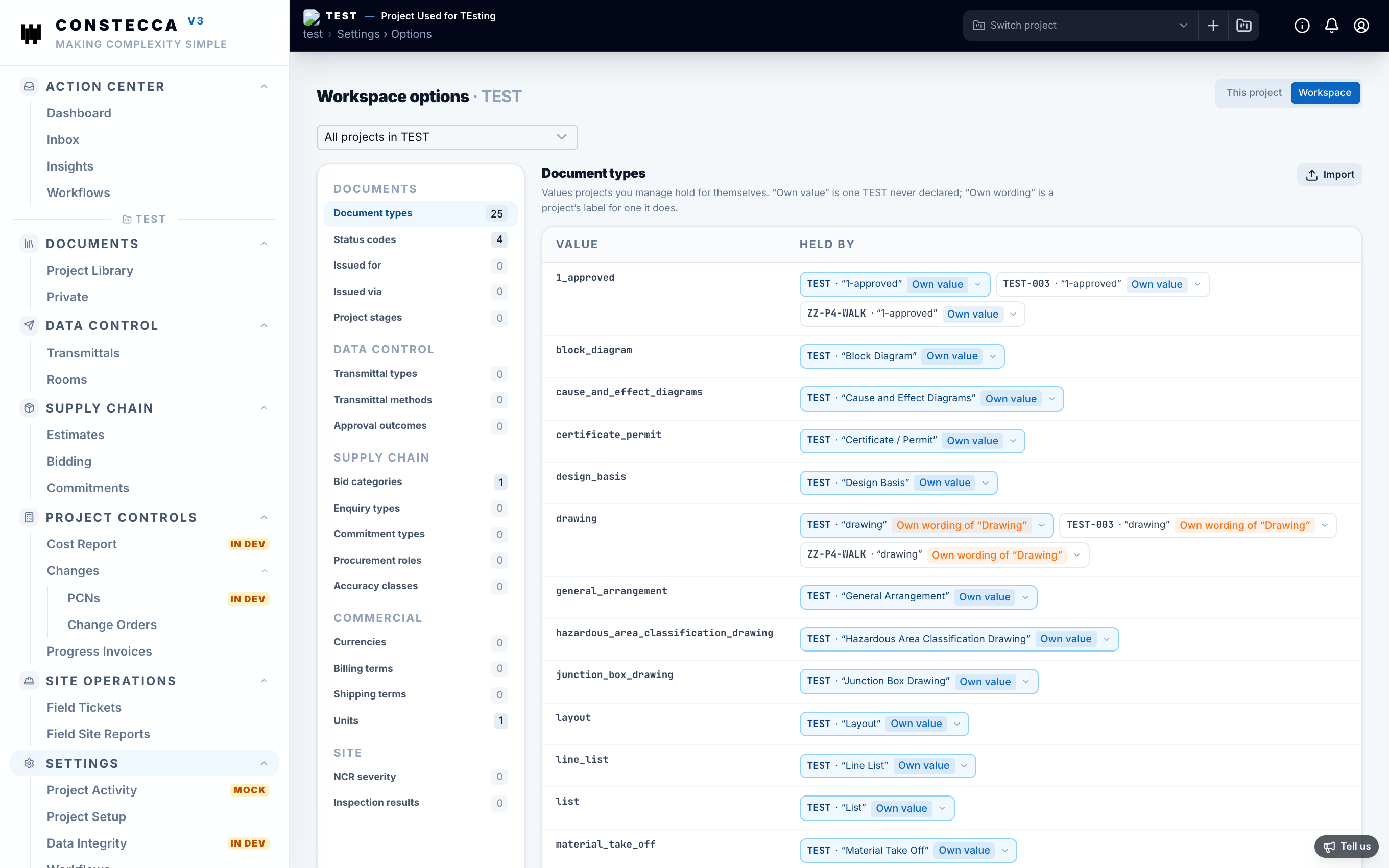
All 19 lists are on the left, each with a count of the values projects hold for themselves. Each value shows one chip per project that holds it:
- Own value: the workspace does not have this value. The project added it.
- Own wording of "…": the workspace has this value, and the project gives it a different label.
Your current project's chip is highlighted.
Act on a value
Click a chip to see what you can do with it.
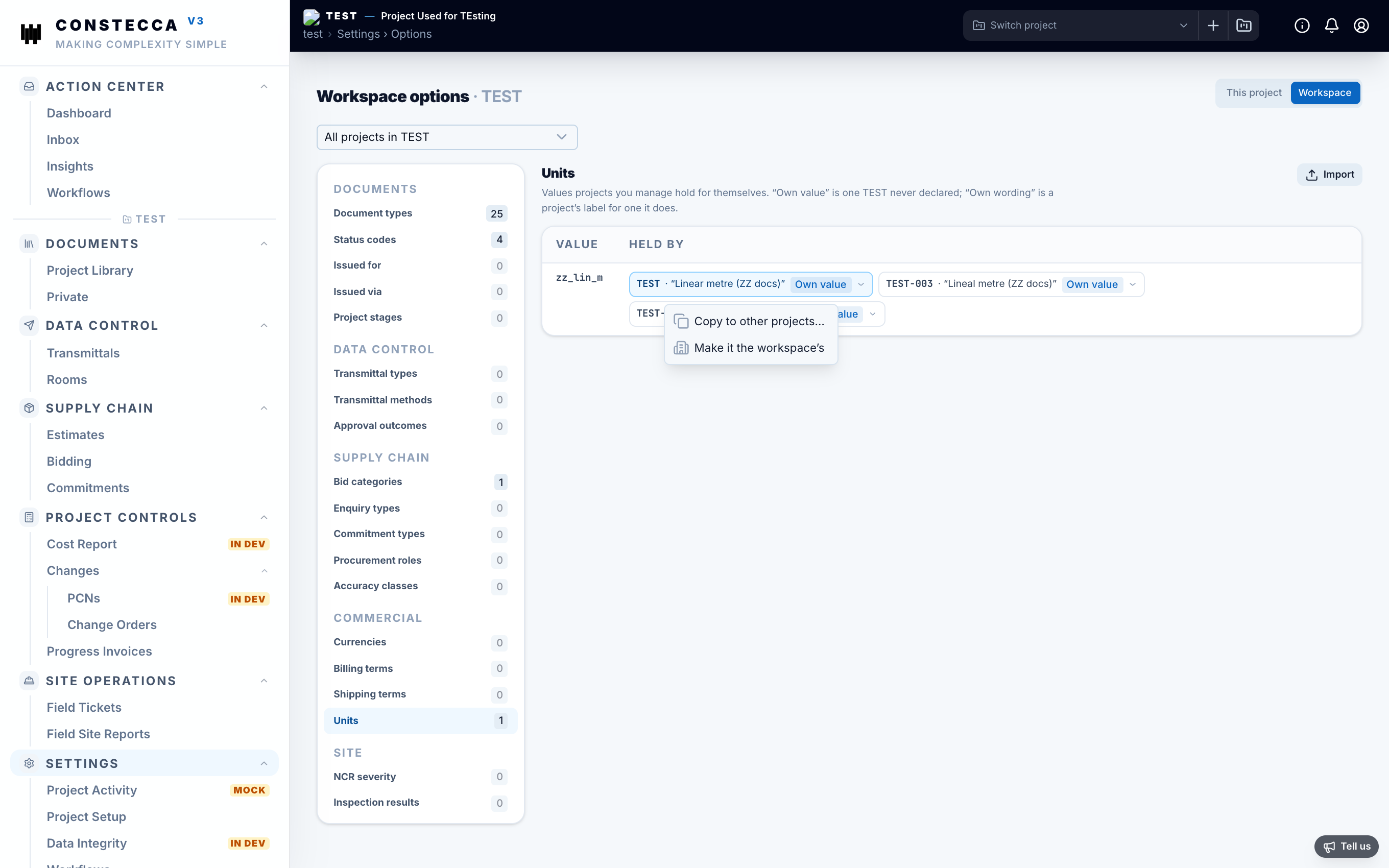
- Copy to other projects… adds the value, with that chip's label, to the projects you choose. Click Preview to see what happens on each project, then Copy to to add it where the preview says it adds.
- Make it the workspace's declares the value for the whole workspace. Only workspace admins see it.
- Use the workspace's "…" appears on own wording. The project goes back to the workspace's label. Nothing on its documents changes.
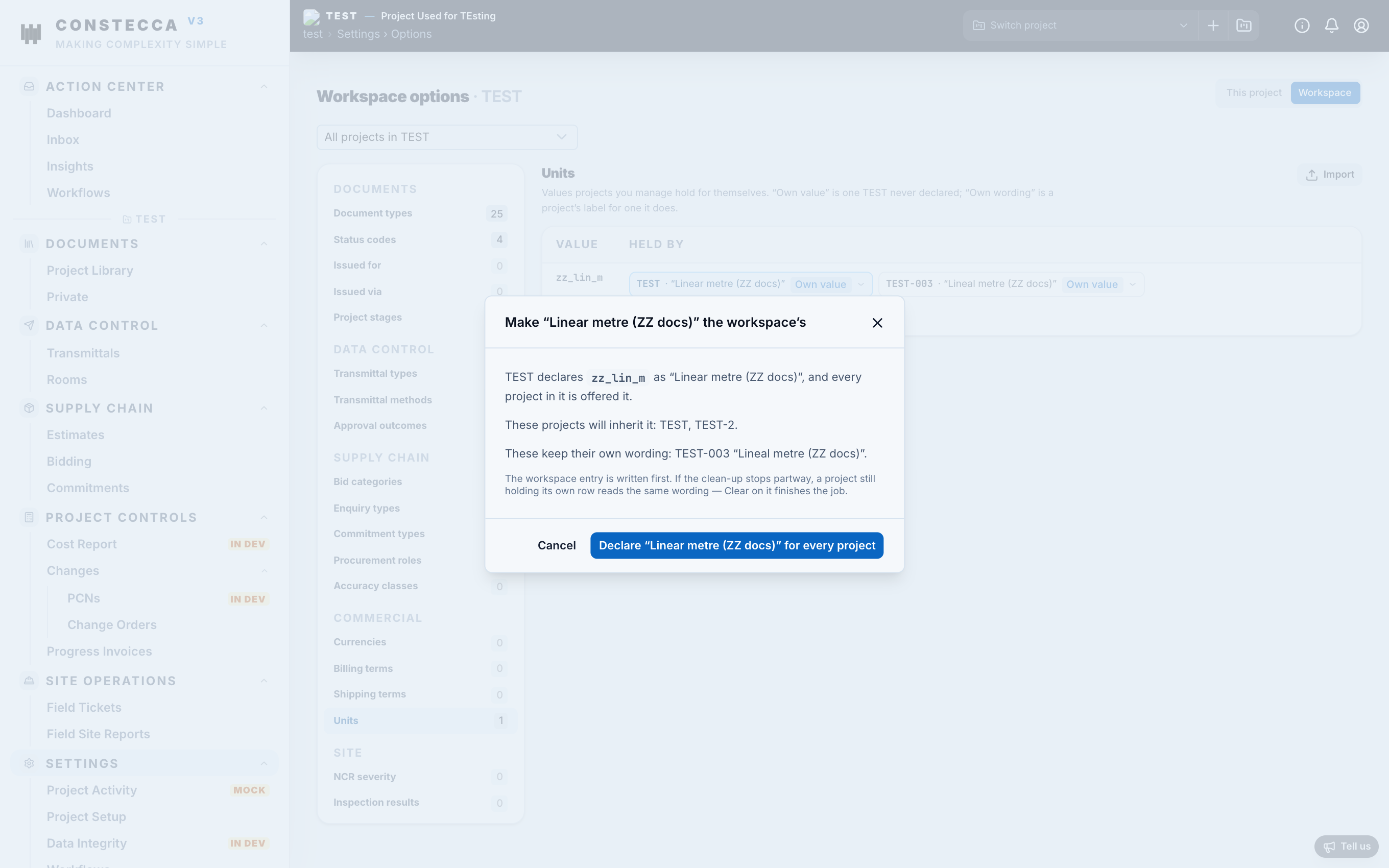
When you make a value the workspace's, the confirmation names which projects will now inherit it and which keep their own wording. Projects holding the same label drop their own copy and inherit the workspace's. Projects with a different label keep it as their own wording.
Import into every project
Every list in the Workspace view has Import. It works like Import on a single project, but each project in scope gets its own copy of every row. The preview names, for each row, which projects it adds to and which already have it. A value a project already inherits from the workspace is refused for that project.
Import here writes project options, not workspace options. To add a value to the workspace itself, use Settings › Workspace › Options.
Narrow the view to a program
If your projects belong to programs, a scope picker appears above the lists. Choose All projects in your workspace, or one program.
In a program:
- Only that program's projects appear, and copies and imports reach only them.
- Make it the workspace's is replaced by Give it to every project in the program. It opens with every program project that lacks the value already selected. Projects that hold the value under another label are named and keep their label.
A program is not a level of its own. Giving a value to a program copies it onto each of its projects. A project added to the program later does not get it. Projects with no program appear only under All projects.
Document types
Document types for uploaded files, such as drawings, specifications and photos, are option lists. You can add your own. Generated documents, such as estimates, commitments and invoices, are built in and cannot be changed here.