
People
Access in Constecca has two levels. The account says who the person is to your workspace. Their standing on each project says what they can do there.
Account types
Standing on a project
| Standing | Can |
|---|---|
| Owner | Run the project, including setup. |
| Manager | Manage people, companies, options and workflows. |
| Contributor | Create and edit documents. |
| Viewer | Read only. |
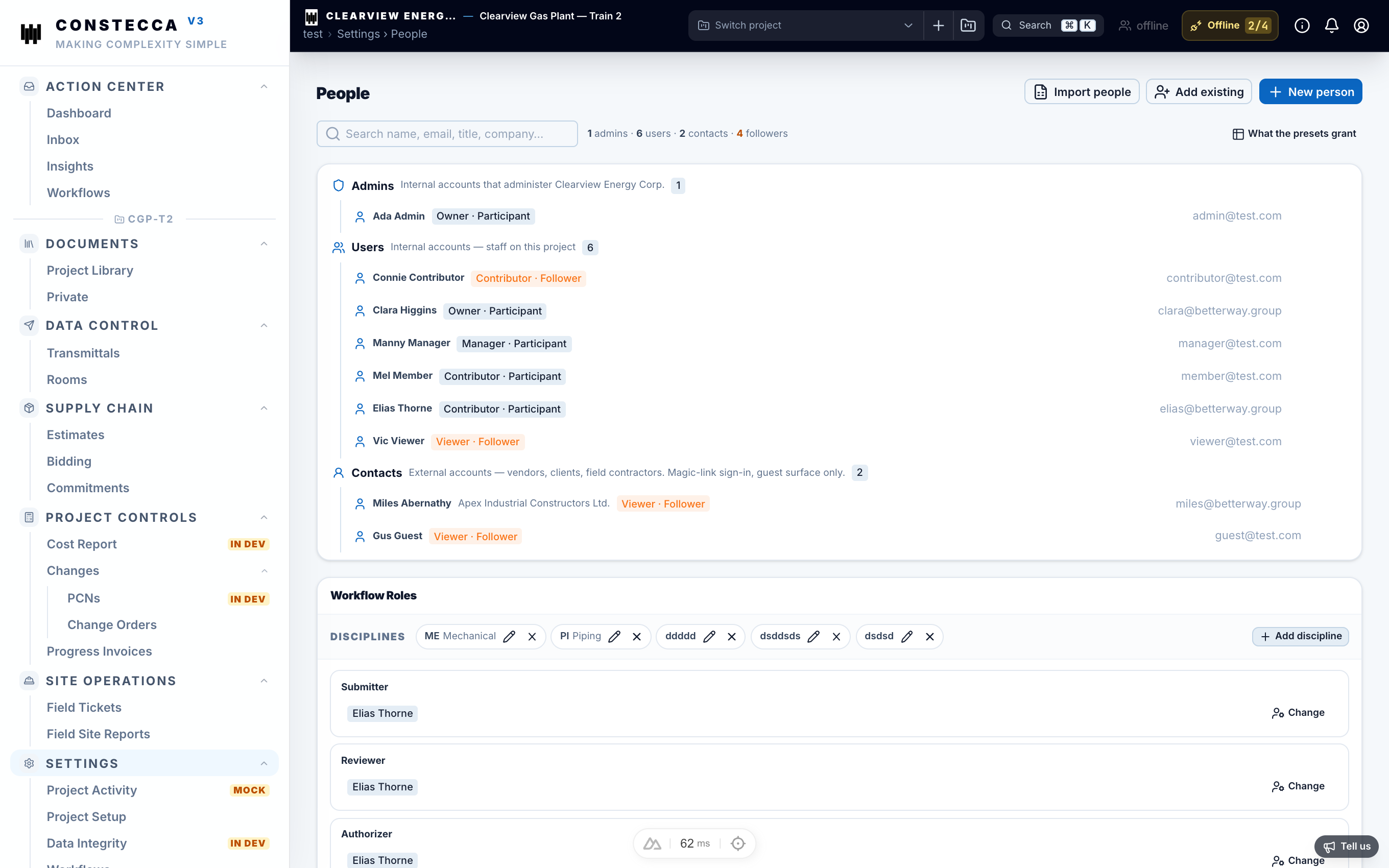
Each person is also a participant or a follower. A follower stays informed but never gets tasks.
Add a person
Enter the account
Go to Settings › Workspace › Users and click Add user. Enter their first name, last name and email, and choose Standard or Guest under Account.
A Standard user needs a Temporary password of at least 8 characters. A guest has no password: they sign in with an emailed link instead.
Pick projects
On the Projects step, pick each project and the person's standing on it.
Save
Click Add user (or Add without projects). Constecca does not email the person. Tell a Standard user their temporary password; they can change it after signing in. Tell a guest to go to the guest sign-in page and request a link with the email address you entered. See Sign in as a guest.
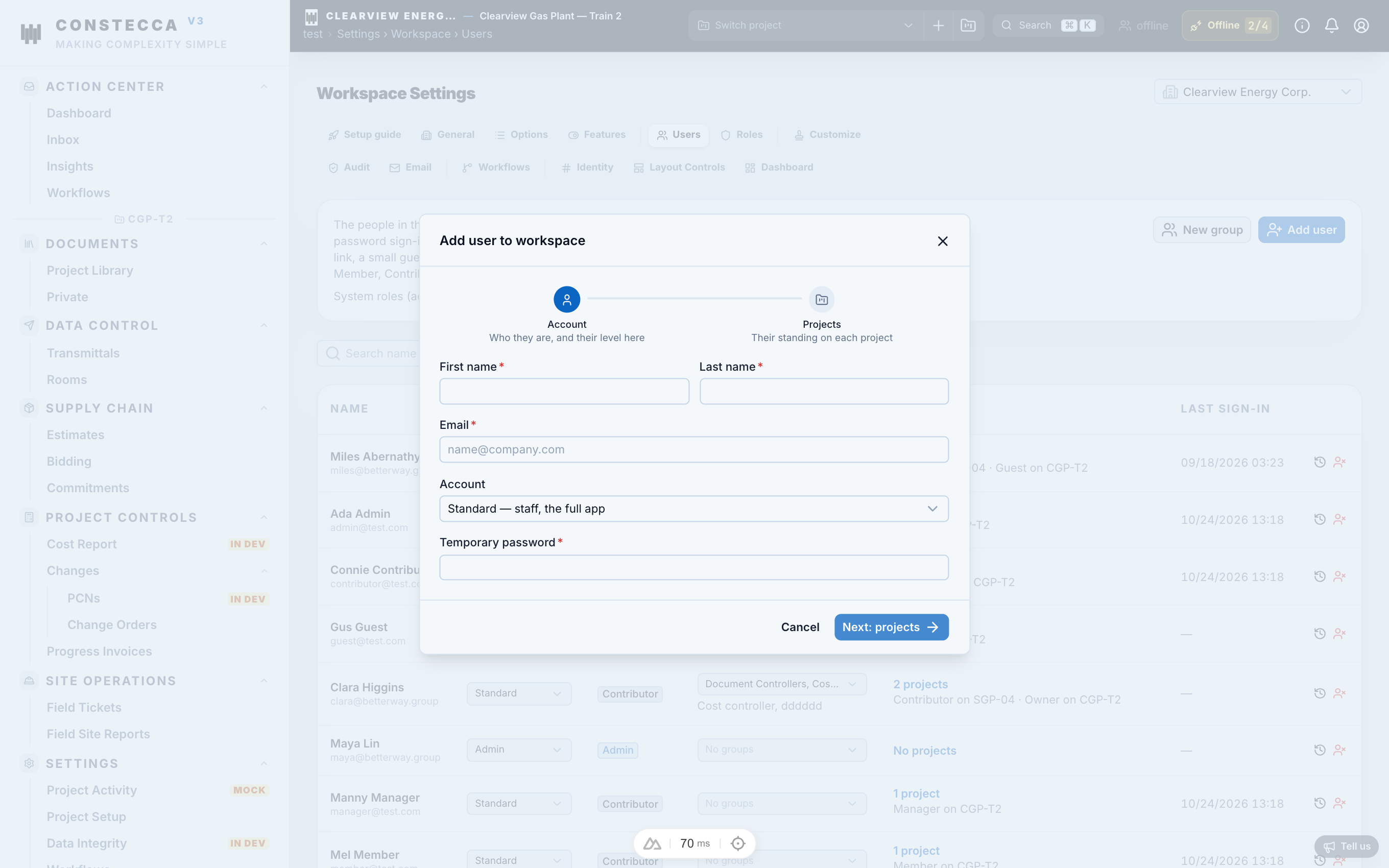
To change someone's standing later, click the Projects cell on their row.
Import many people
On Settings › People, admins can click Import people. Upload two sheets, one for accounts and one for project access. Then Verify shows what will change, and Create adds it. The import only adds people. It never changes an existing account.
Workspace roles
Workspace roles, such as cost controller, are set up on Settings › Workspace › Roles. You can give someone a role on every project or on one project only. Use the People tab in Project Setup to do this per project.