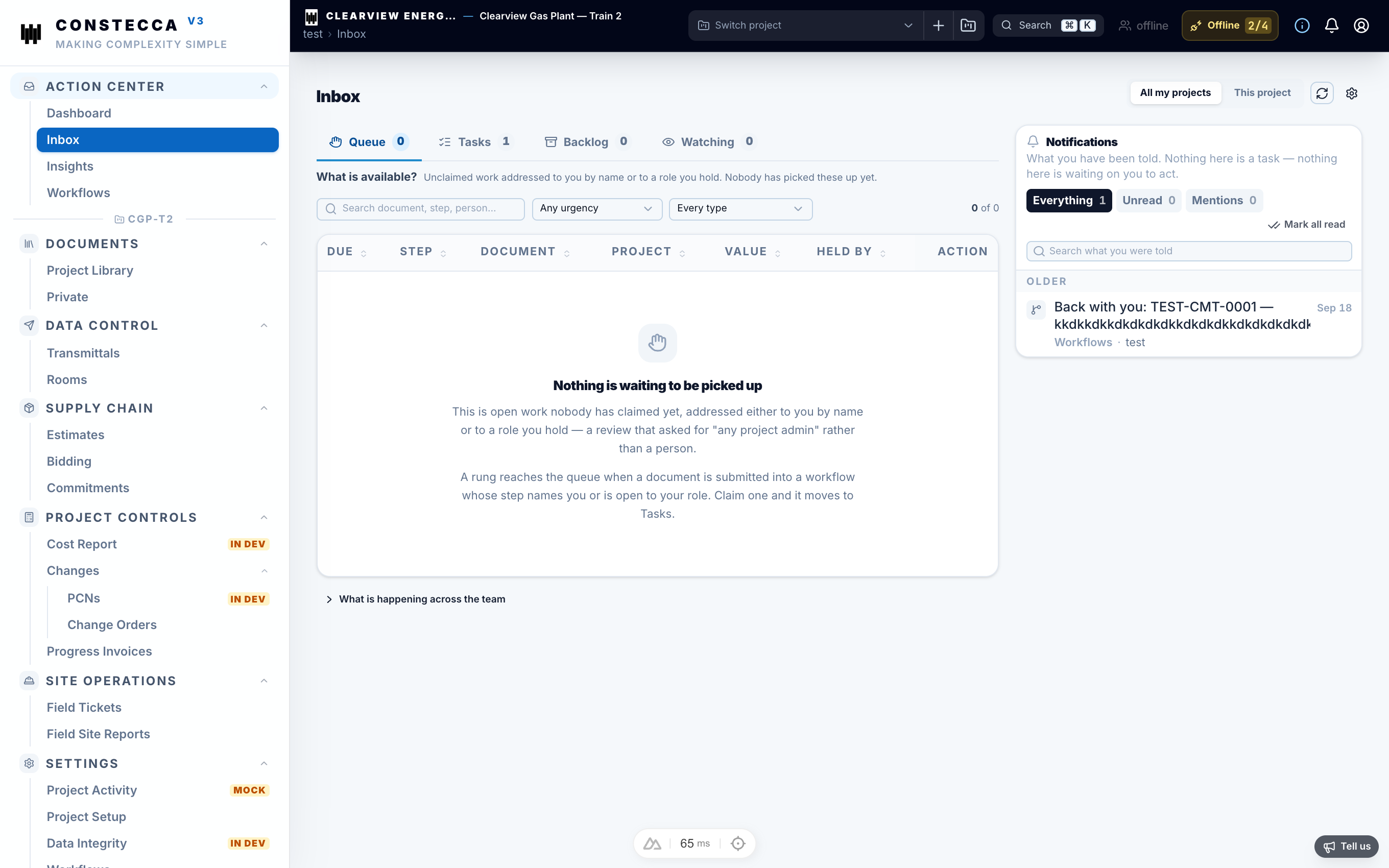
Signing in and finding your way
Sign in
When someone adds you to a project, Constecca sends you an email. If you are new, the email holds a link to set your password. The link stays valid for 14 days.
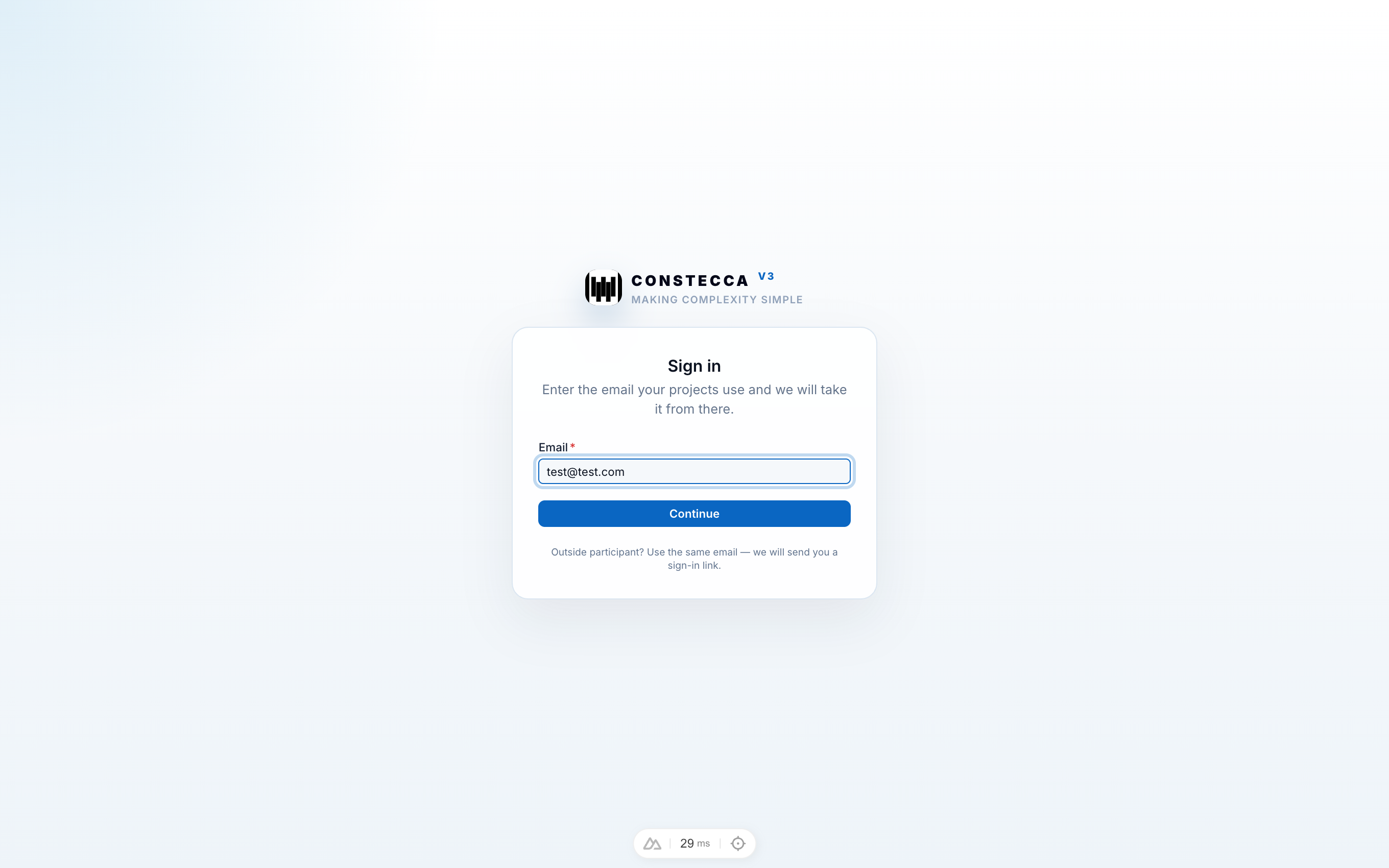
Enter your email
Go to the sign-in page, type your work email address, and click Continue.
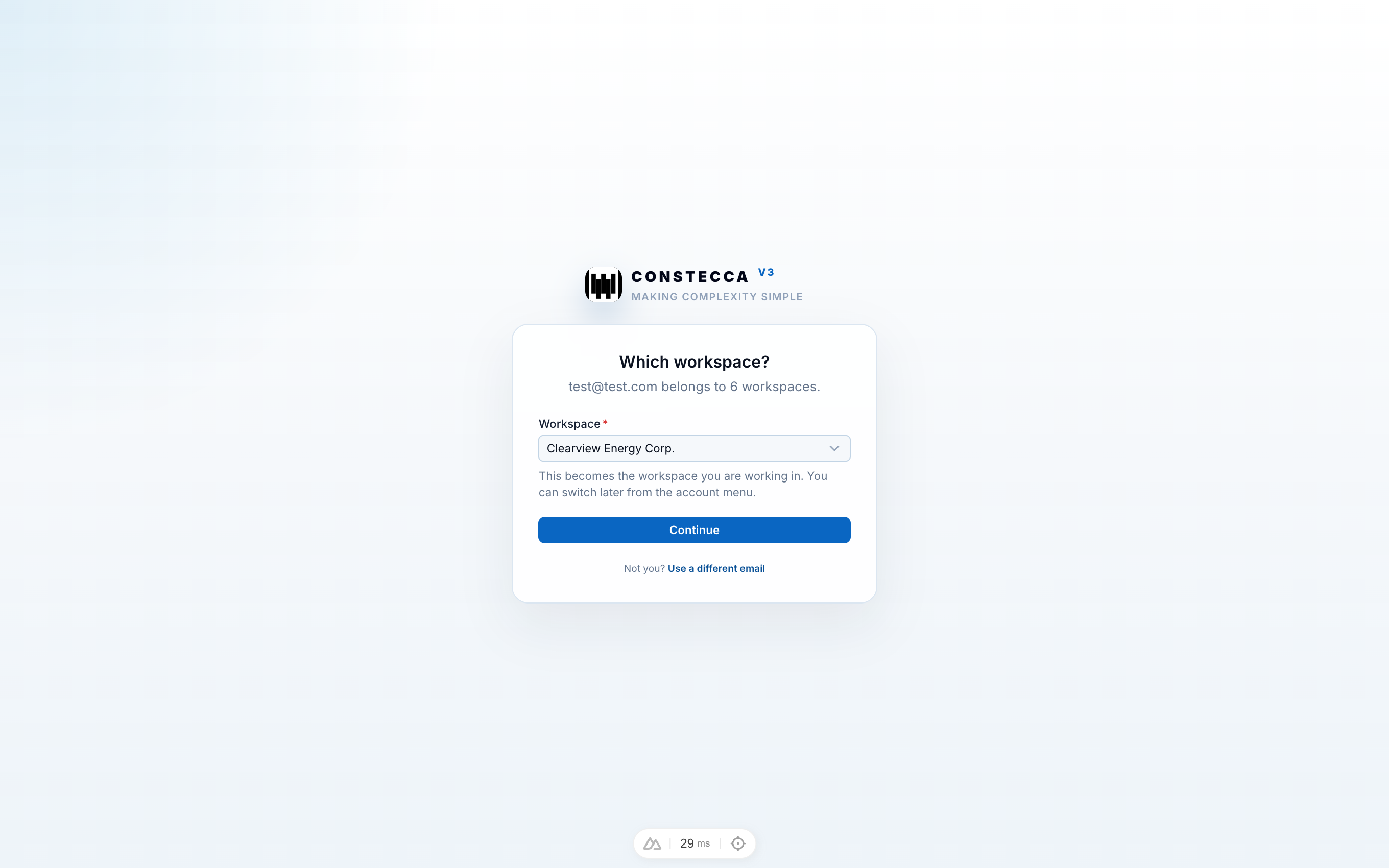
Choose your workspace (if you belong to more than one)
If your account belongs to more than one workspace, Constecca asks which workspace you want to open. Click the workspace card to continue. If you belong to only one workspace, Constecca skips this step automatically.
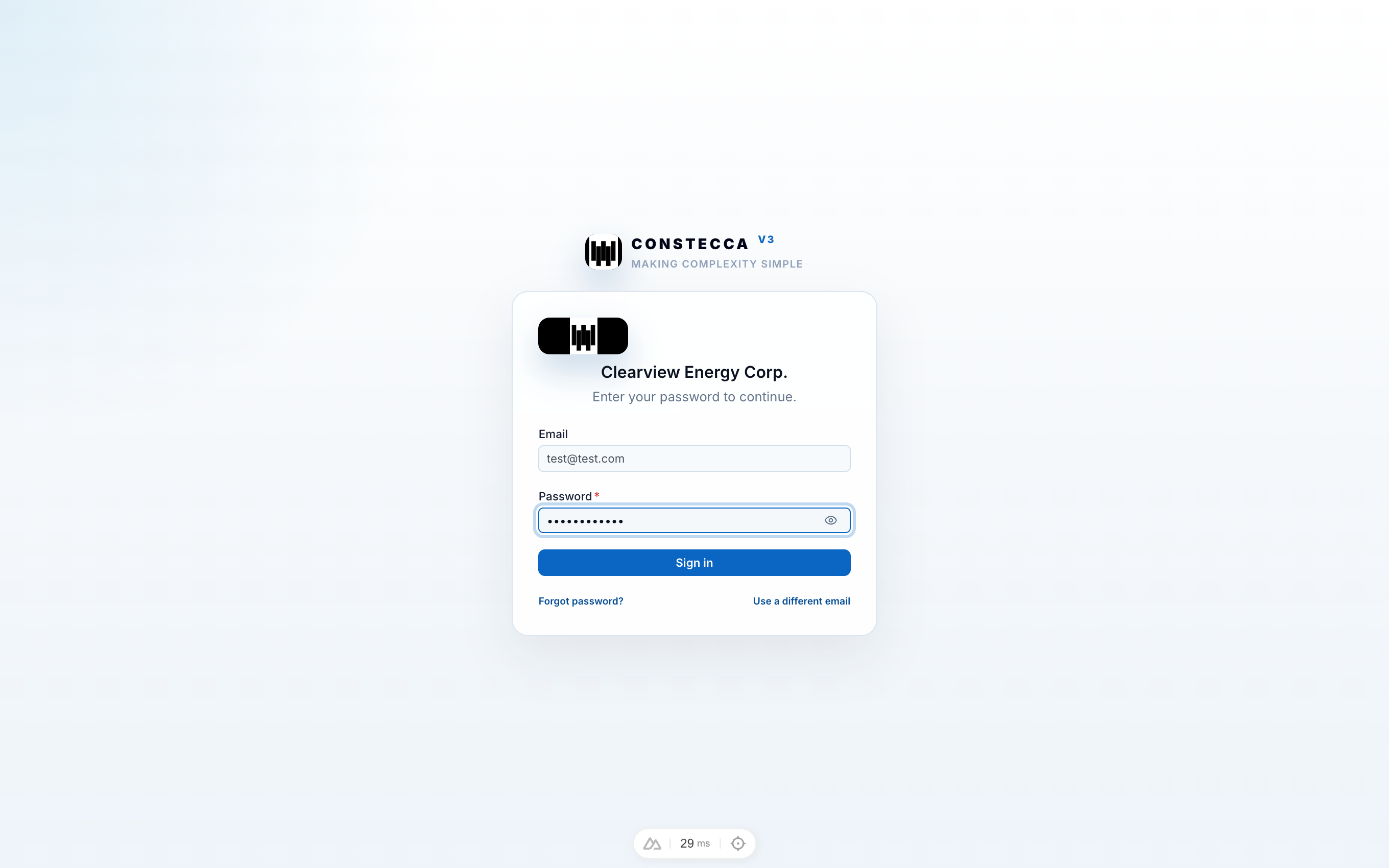
Enter your password
Type your password and click Sign in. If you need to pick a different email or workspace, click Change next to your email address.
Forgot your password?
On the password step, click Forgot password? and follow the link in the email you receive.
Outside company?
If you work for a vendor or another outside company, Constecca sends a sign-in link to your email as soon as you enter your address on the first step, so you never need a password. See Working with outside companies.
Workspaces and projects
A workspace belongs to one organization and holds all of its projects. Most people belong to one workspace. If you belong to more than one, switch between them from your account menu at the bottom of the left sidebar.
A project is the job you work on. Everything you see in Constecca (documents, tasks, costs) belongs to the project selected at the top of the screen. To change project, click the project picker in the top header and choose a project from the dropdown, or open All projects with ⌘Ctrl K.
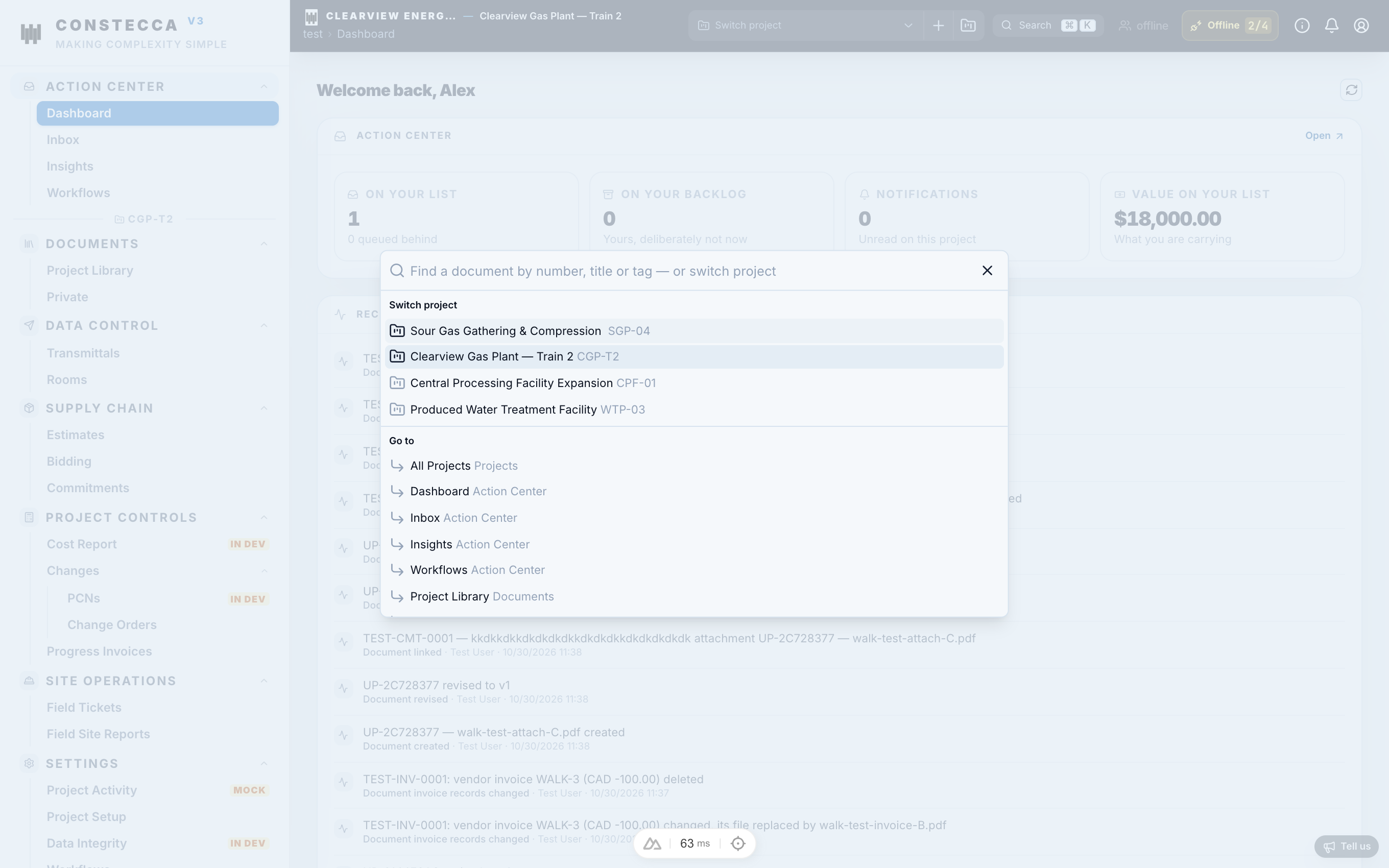
The main menu
The menu on the left groups the app into modules:
| Module | What you do there |
|---|---|
| Action Center | Your inbox, dashboard and insights. |
| Documents | The document register, uploads and register imports. |
| Data Control | Transmittals, reviews, feedback and review rooms. |
| Supply Chain | Estimates, bidding, commitments and engagements. |
| Project Controls | Change orders, invoices, AFEs and the cost report. |
| Site Operations | Field site reports and field tickets. |
| Settings | People, companies, option lists and project setup. |
You only see the entries your role allows. Your administrator can also hide modules your team does not use, so your menu may be shorter than this list.
i) button beside the bell in the top header to show or hide them.