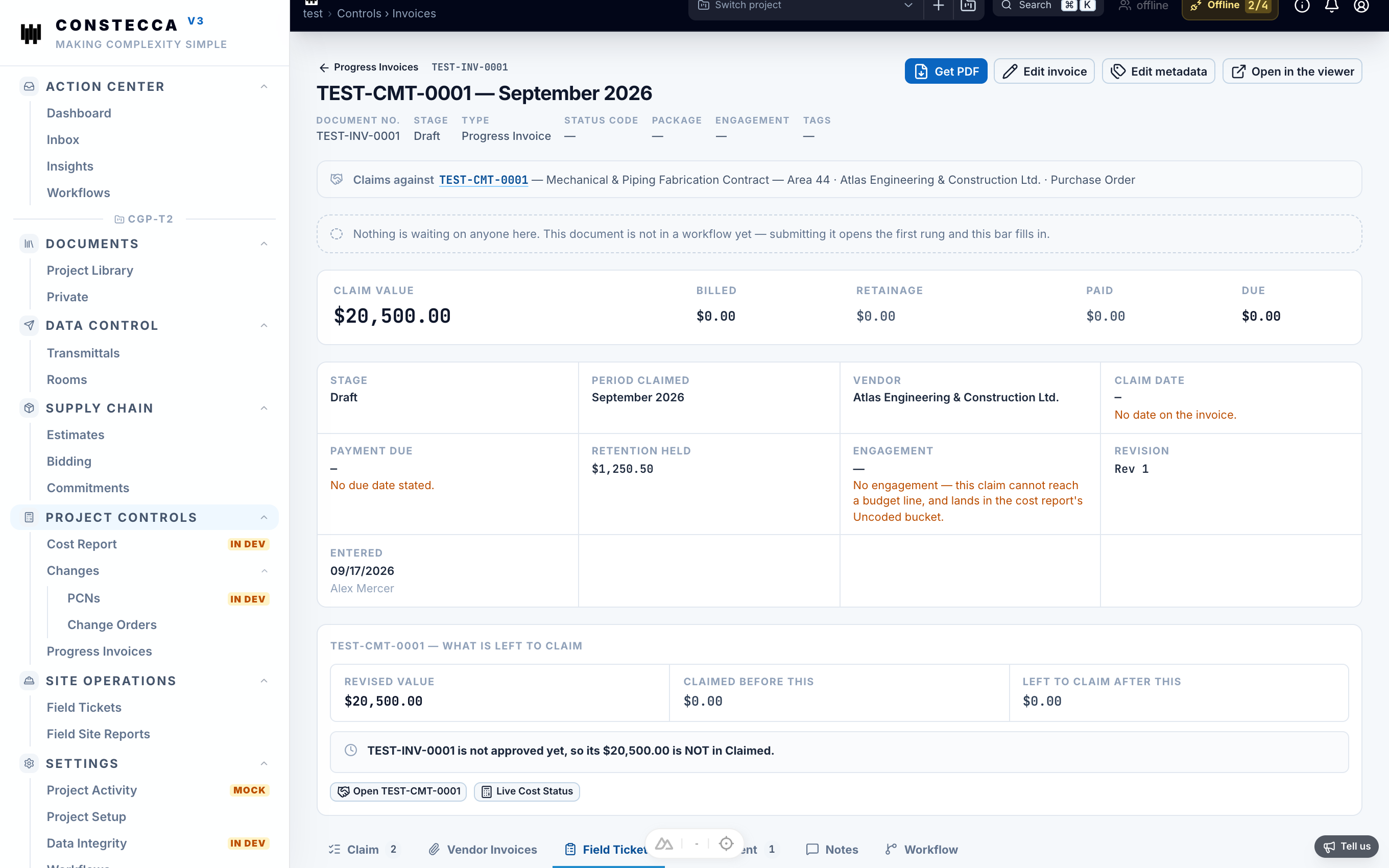
Progress invoices
A progress invoice, or claim, records how much work a supplier has done in a period. You claim against the commitment's lines, then record the supplier's own invoices as they arrive.
Create a claim
Start the claim
Go to Project Controls › Invoices and click New. Pick the commitment.
Set the period
Pick a start date and an end date. A new claim opens on the current month, but any date range works.
Enter progress per line
On the Claim tab, enter the progress for each commitment line. You can type a percent complete to date, or this period's percent or amount. Each figure updates the others.
Enter retainage
Type the retainage held on this claim, if any.
The invoice limit
The limit works per currency. A claim in USD is checked against the commitment's USD value, never its CAD value. To claim more, first approve a change order that raises the commitment.
Record vendor invoices
The supplier sends their own invoices against your claim. Record each one on the Vendor Invoices tab.
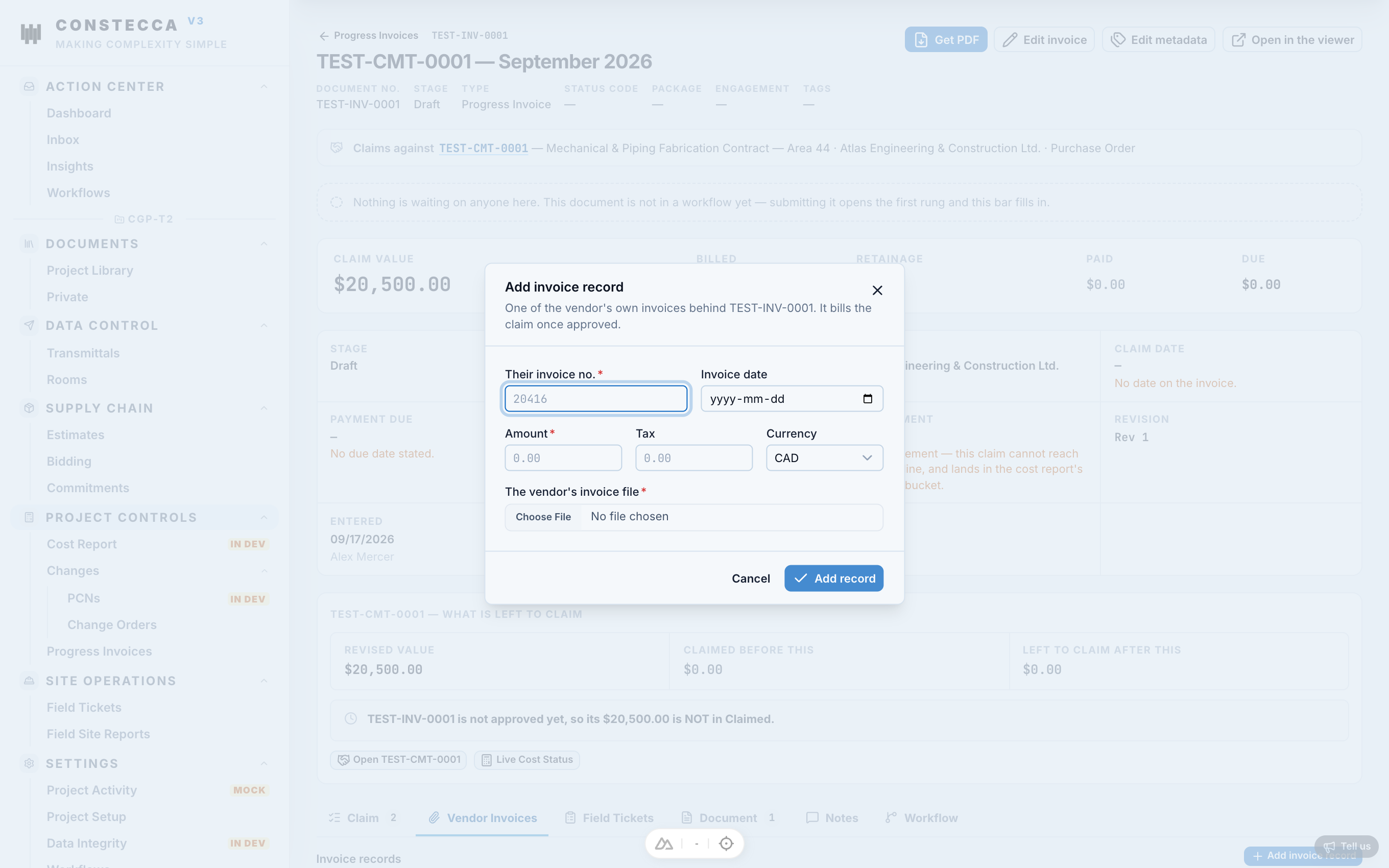
- Click Add invoice record.
- Enter their invoice number, date, amount and currency.
- Attach the invoice file. The file is required.
- Click Add.
Each record carries a mark: Received, Approved or Paid. Click Mark to move it along. When you mark it paid, confirm the paid date and amount.
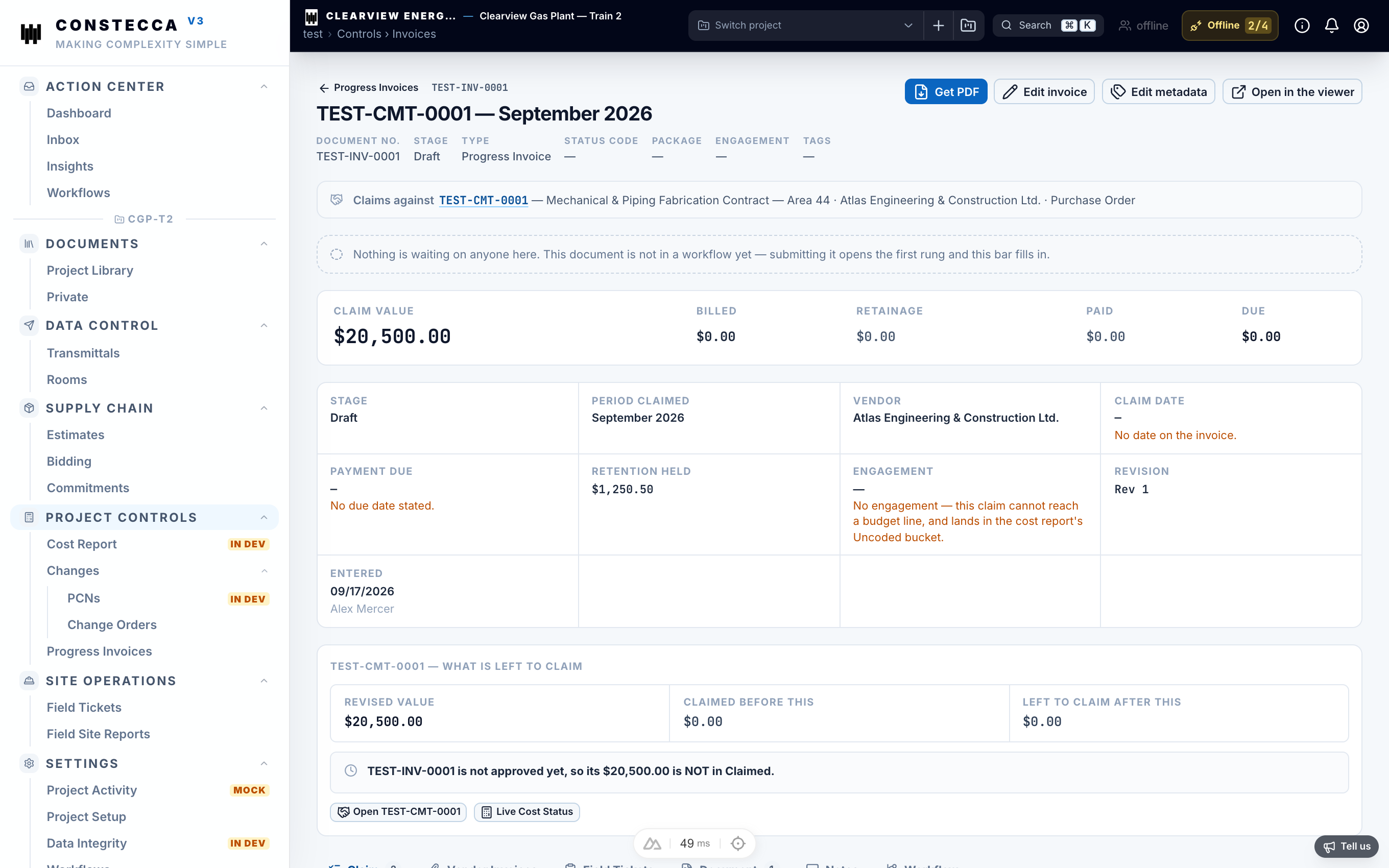
Read the billing strip
| Figure | Means |
|---|---|
| Claim value | The total of the claim lines. |
| Billed | Vendor invoices marked Approved or Paid. |
| Retainage | The retainage you typed, but never more than Billed. |
| Paid | What has been paid. |
| Due | Billed minus retainage minus Paid. |
Billed may go over the claim value. The app allows it and shows it in red so you can follow up.
Link field tickets
The Field Tickets tab lists every field ticket on the commitment. It groups them as On this invoice, On another invoice and Not invoiced yet. Pick a date range, then click Add or Remove to put a ticket on this invoice.