
Change orders
A change order adds to, or takes away from, the value of a commitment. Use one whenever the scope or price of agreed work changes.
Raise a change order
Open the commitment
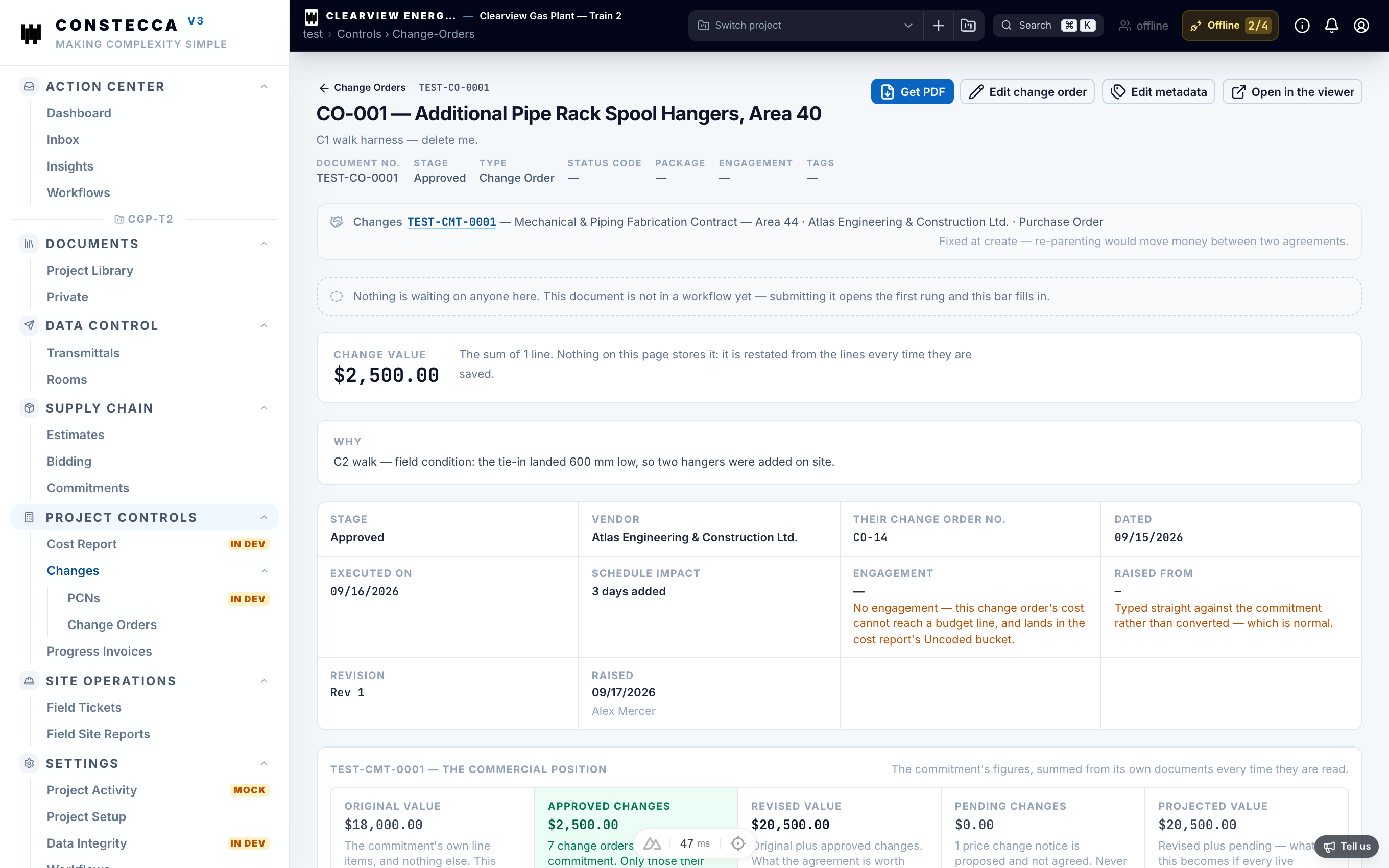
Find the commitment the change applies to. A change order always belongs to one commitment, and you cannot move it to another later.
Create the change order
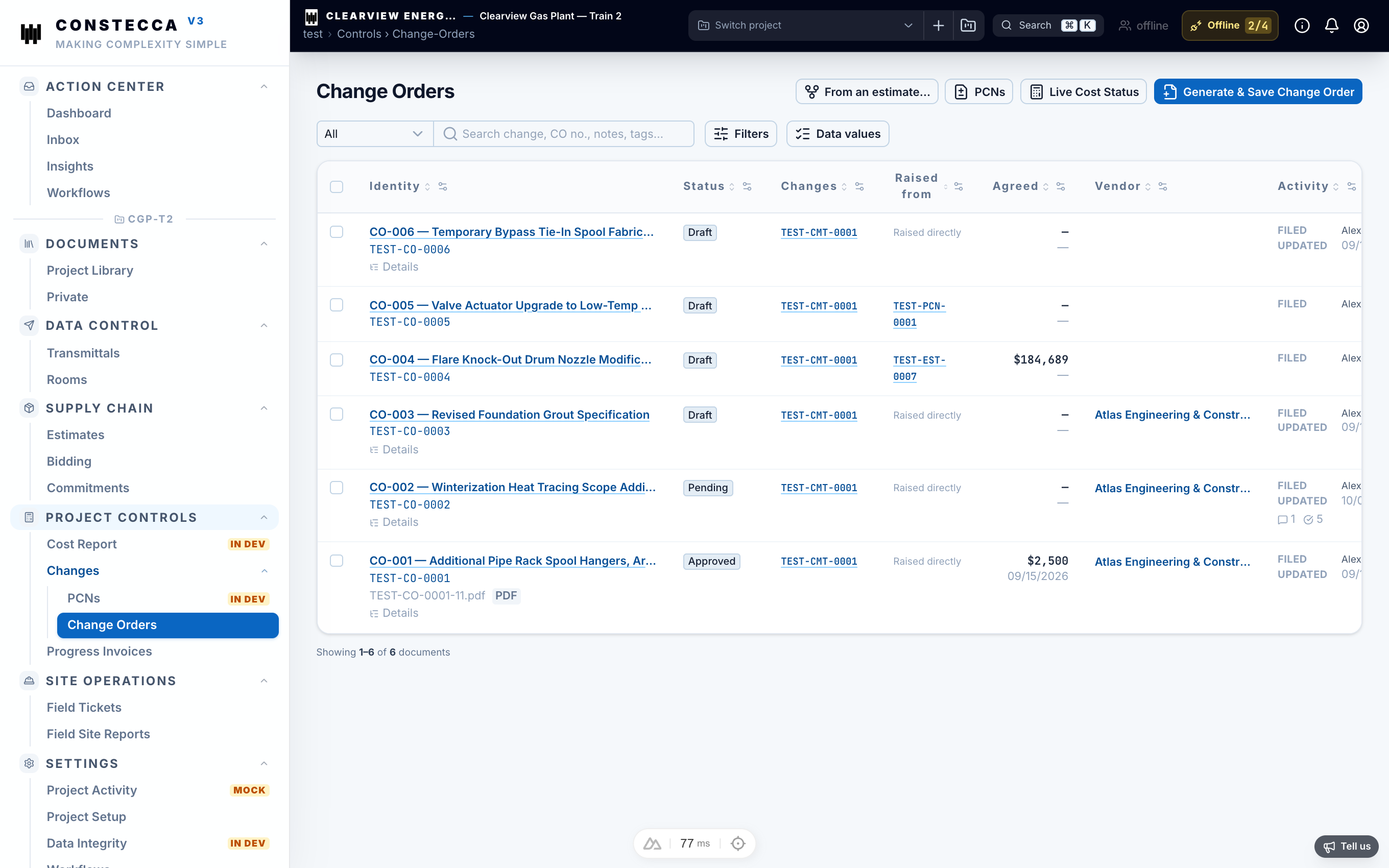
Go to Project Controls › Change Orders and click New, then pick the commitment. The change order takes the commitment's company and engagement automatically.
Add the lines
Add a line for each part of the change. The change order's value is the sum of its lines. Use a negative amount to reduce the commitment.
Save
Click Save. The message after saving tells you what the commitment will be worth once this change order is approved.
Approve a change order
Click Send for approval on the change order. Each approver gets a task in their Action Center. They approve or return it on the change order itself.
Questions
No. Create a new change order on the right commitment and delete the wrong one.
It goes back to the person who raised it as a rework task. Fix it and send it for approval again.