
Documents
Library, unclassified and private
Learn the classes a document moves through, and how to make one private.
Every document belongs to a class. The class decides which shelf shows it and who can see it.
The classes
Unclassified
A file that arrived without enough details to file it. It waits on the Unclassified shelf until someone sorts it.
Classified
A file whose details are complete, ready to join the Library.
Library
The project's controlled documents, visible to everyone on the project with access to Documents.
Private
A document restricted to the people given access to it. Project owners and managers see the Private shelf.
Sort unclassified files
Open the Unclassified shelf. Each row shows how complete its details are.
Fill in the details
Click Open in editor on a row and complete its type, number and other details. To sort many files at once, select them and choose Categorize via spreadsheet.
Mark it classified
When a row's details are complete, click Mark classified. The file becomes a Library document and gets its document number.
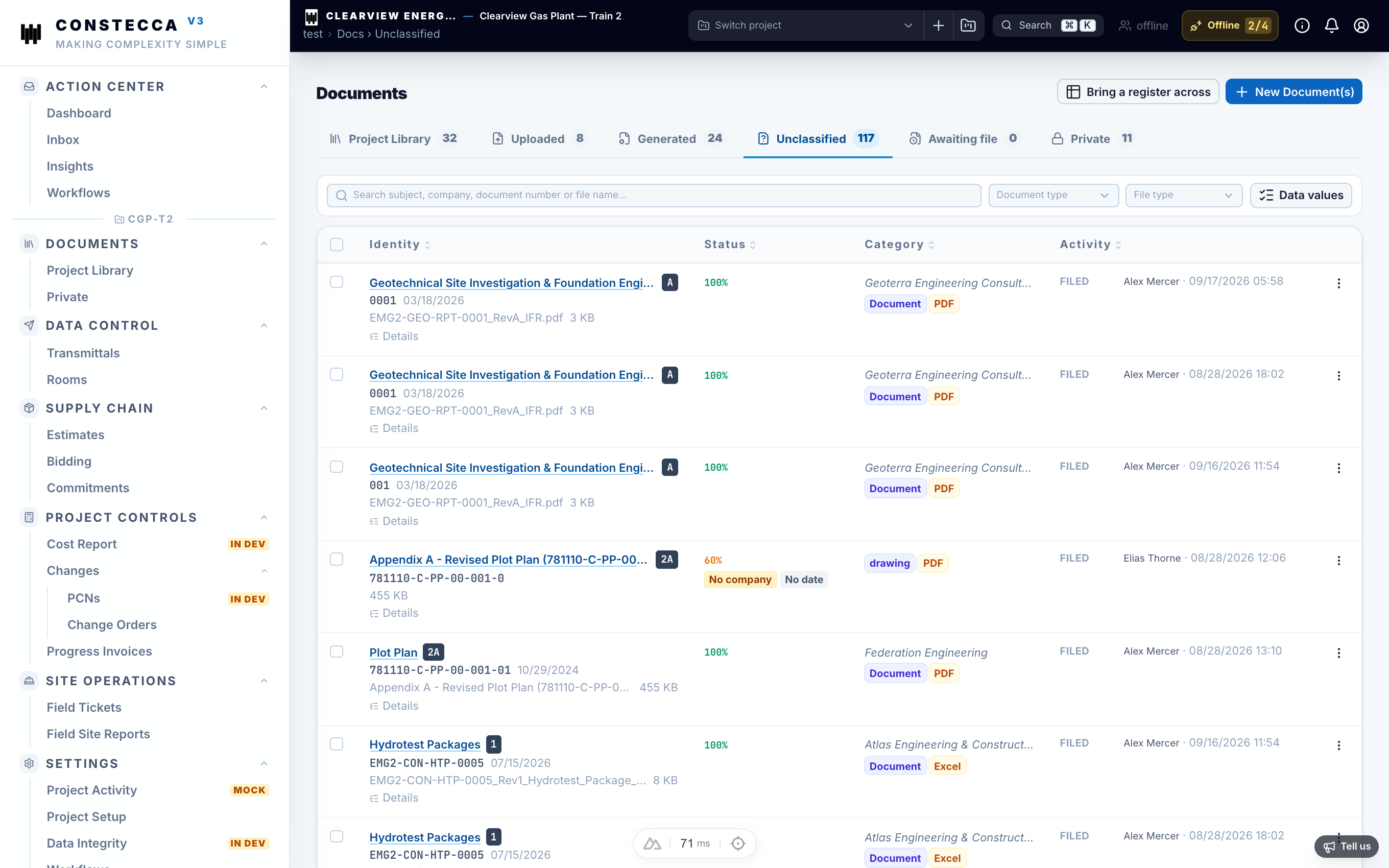
Select the header checkbox, then Select all matching, to mark many rows classified in one go. Rows that are not complete yet are left alone.
Make a document private
Sometimes a document must be seen by fewer people, for example a sealed bid or a personnel record.
Open the document
Open it in the viewer.
Make it private
Choose Make private and type the reason. The reason is required and is kept with the document.
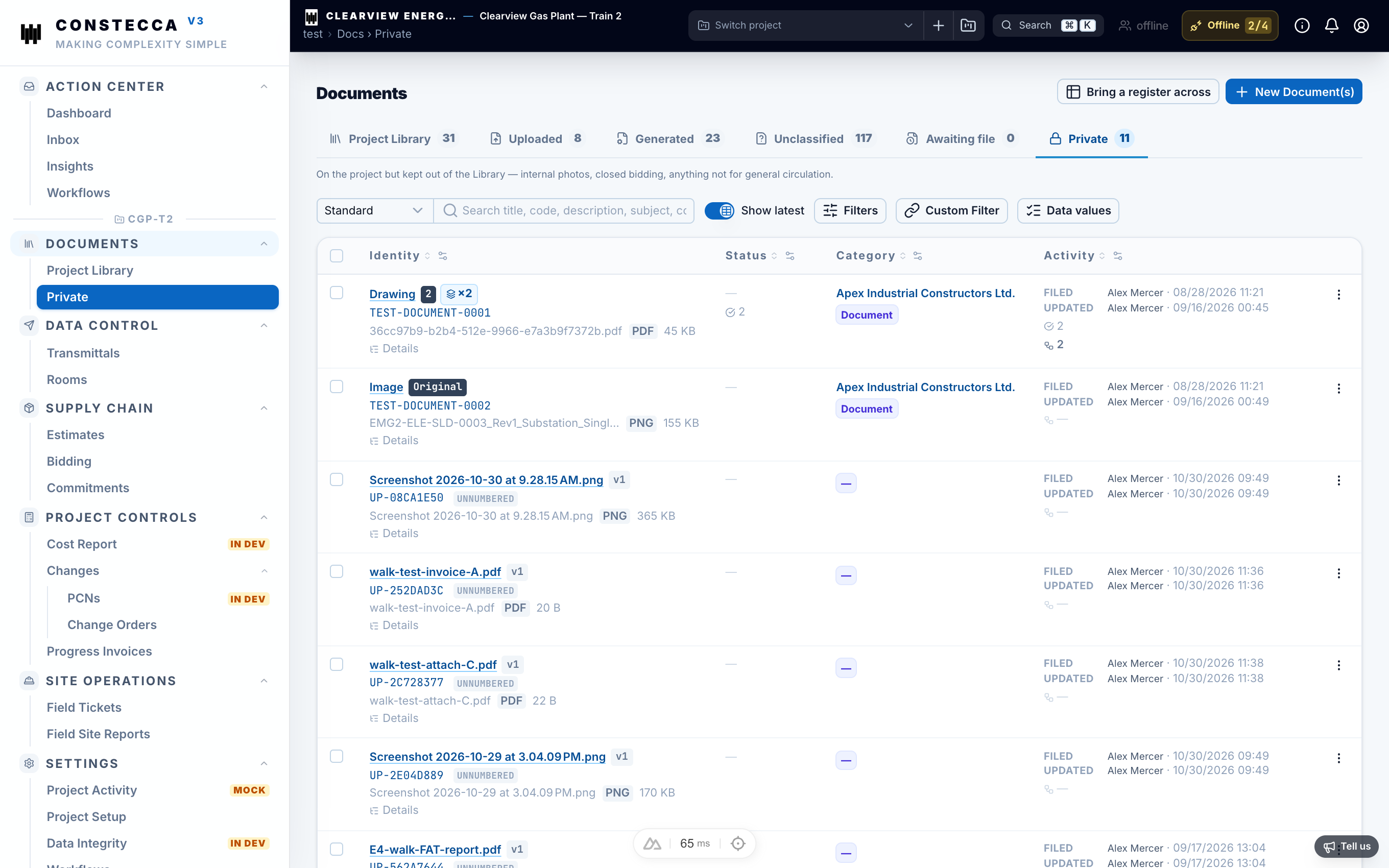
Making a document private is the only way to move it out of the Library. Do it only when the document truly needs restricted access.