
Upload files
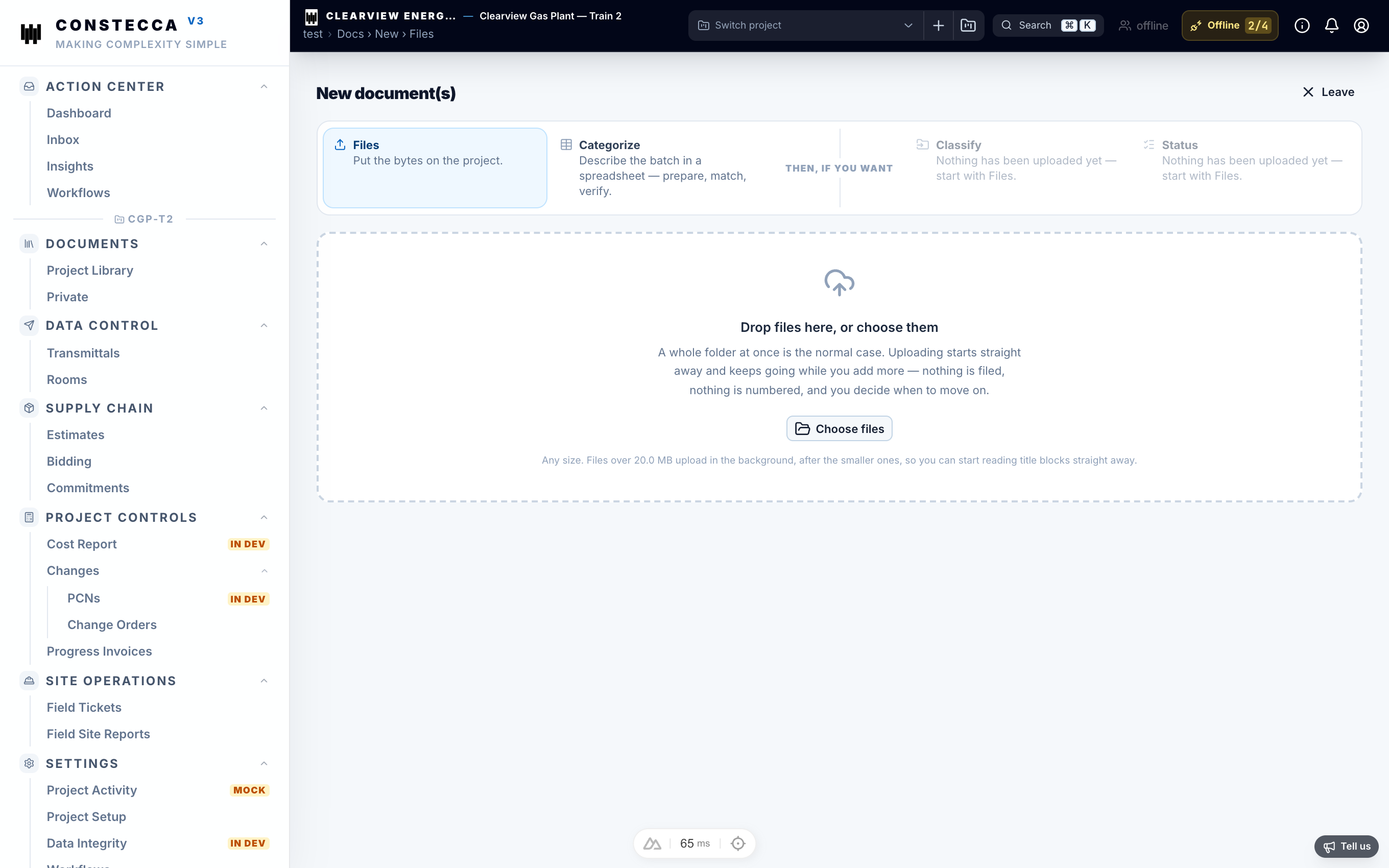
You can upload one file, a handful of files, or a whole folder with everything inside it.
Upload single files
Open Documents
Choose the project at the top of the screen, then open Documents.
Upload
Click Upload files and pick the files from your computer.
Sort them
New files land on the Unclassified shelf. Give each one a type and its details, then mark it classified so it joins the Library. See Library, unclassified and private.
Upload a whole folder
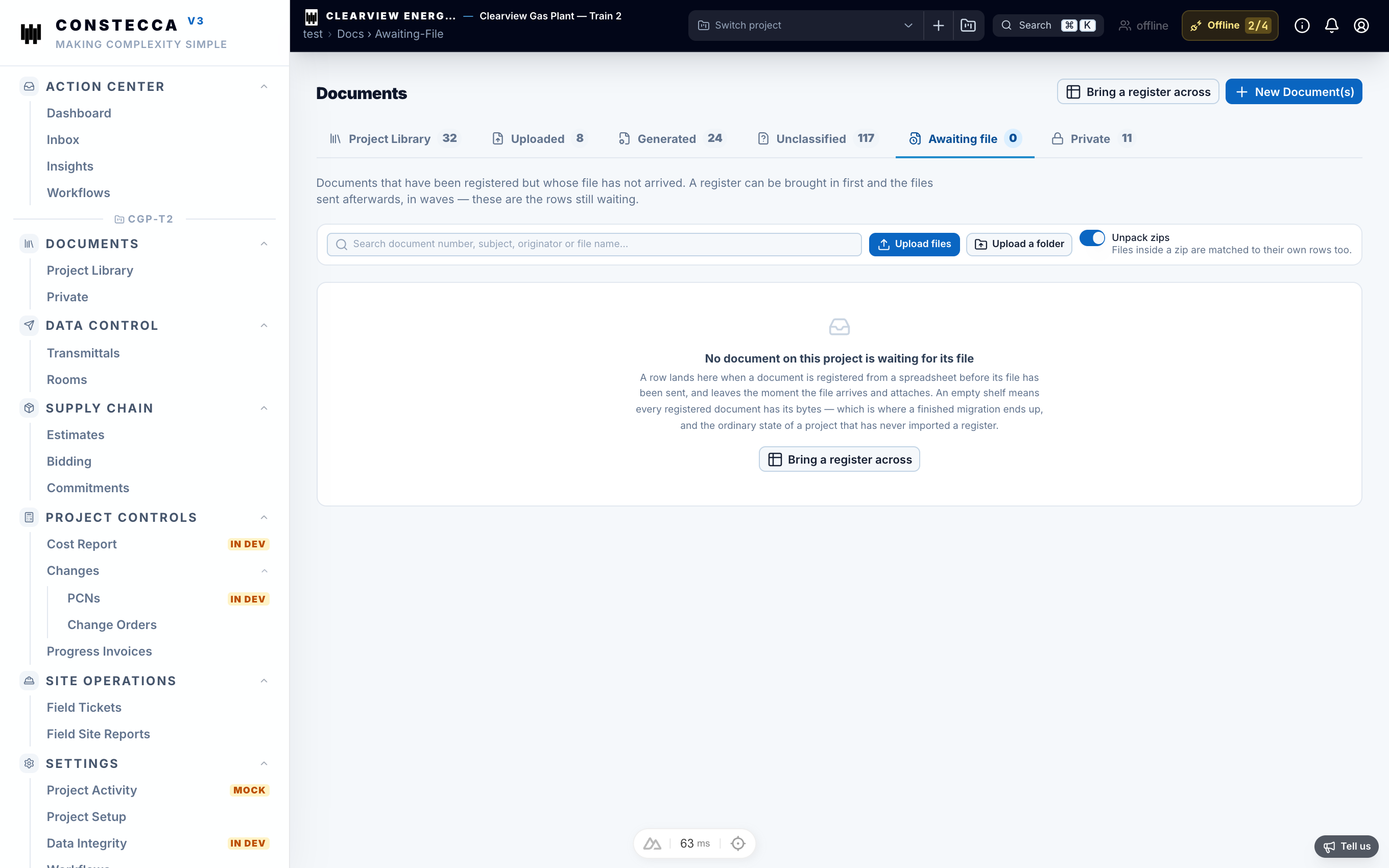
Folder upload is how files arrive for a register you have already imported. Constecca reads the folder and its subfolders, and files each document on the register row that names it.
Open Awaiting File
Open Documents, then the Awaiting File shelf.
Choose the unzip option
Leave Unpack zips on to open each zip file and file the documents inside it on their own rows. The zip itself is kept too. Turn it off when the register names the zip as a single document, and Constecca files the zip whole.
Pick the folder
Click to choose a folder. The upload starts at once.
Follow the progress
A progress bar appears at the top of every screen while your folder uploads, so you can keep working. It shows how much of the folder has been checked and an estimate of the time left.
Click Cancel on the bar to stop the upload. Files already filed stay filed.
When the upload finishes, the page lists any file that was not filed and why, for example a file no row was waiting for.