
The document register
The register is the project's list of documents. Open Documents in the main menu to see it.
Shelves
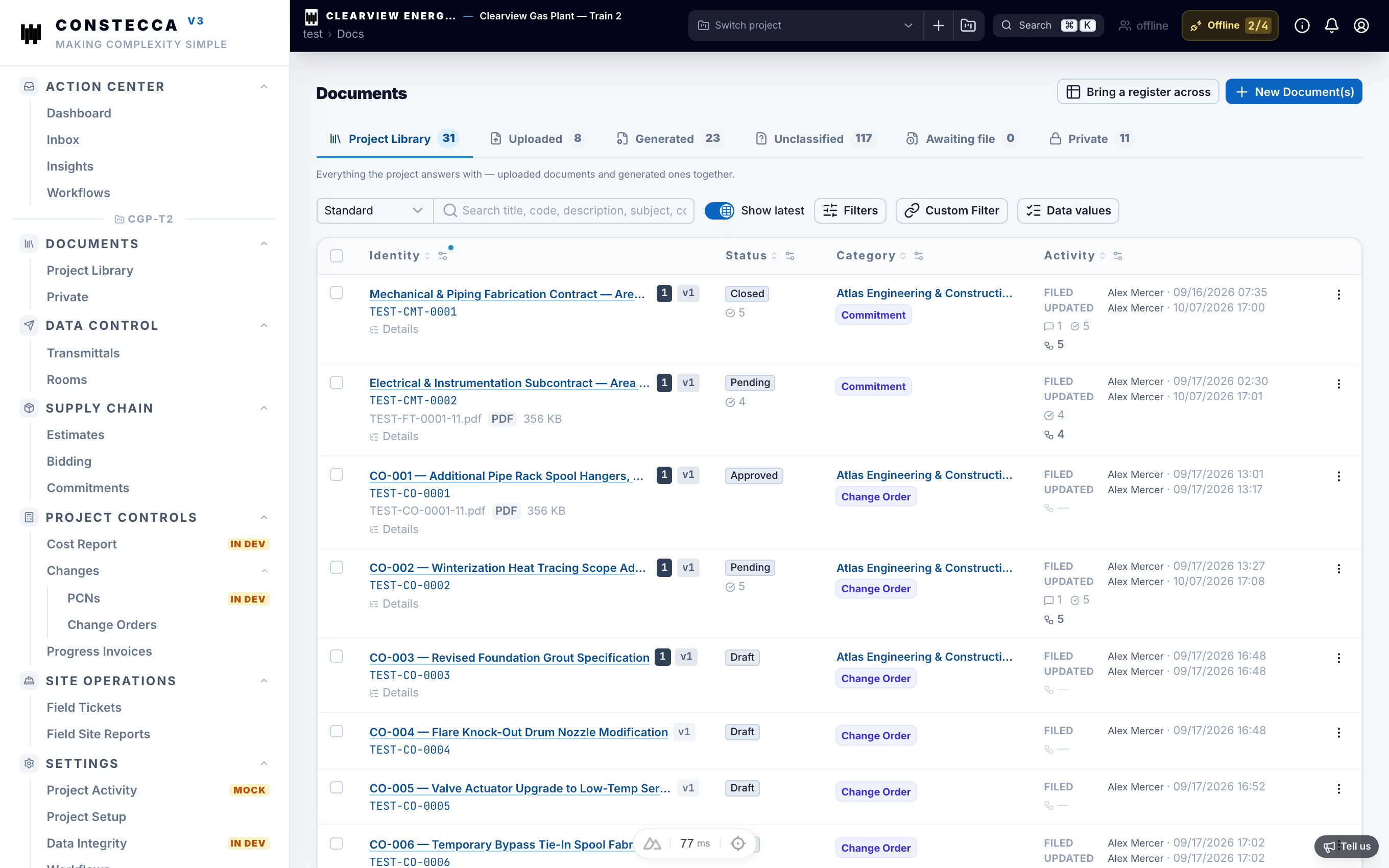
The register is split into shelves. Each one shows a different set of documents:
| Shelf | What it shows |
|---|---|
| Project Library | The project's controlled documents. |
| Generated | Documents built in Constecca, such as estimates and commitments. |
| Uploaded | Files that arrived through upload or a register import. |
| Unclassified | Uploaded files that still need sorting. |
| Awaiting File | Register rows that are still waiting for their file. |
| Private | Documents restricted to a few people. |
You only see the shelves your role allows. See Library, unclassified and private for what each class means.
Find a document
Type in the search box at the top of the shelf. The search looks at document numbers, titles and the project's own fields. Use the picker beside the box to search one field only.
The list loads more rows as you scroll, and always tells you the total. Click Back to top in the bottom corner to jump back up.
Choose your columns
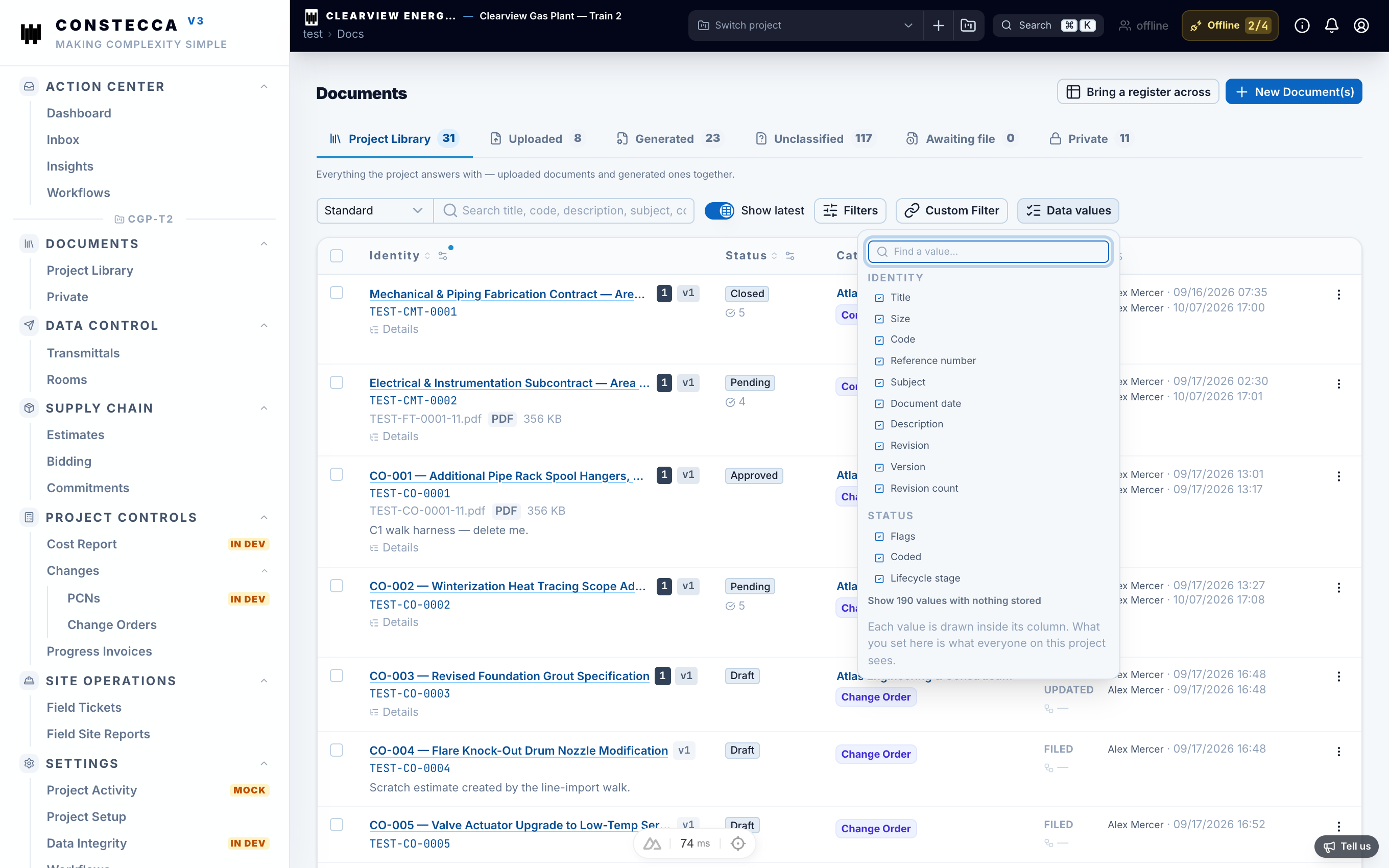
Click Data Values to choose which details appear as columns. The menu groups the fields and lets you search for one by name.
Open a document
Click a row to open the document in the viewer. From there you can download the file, see its revisions and versions, and act on any task. Click Edit all fields to correct details such as the company, the type or the issue date.
Delete and restore
Click Delete on a row or in the viewer. Constecca asks you to confirm and names what goes. A deleted document is not gone for good: turn on Show deleted to find it again, then click Restore.